Lab 7: Pipes and filters in UNIX
You may find our solutions to Lab 6 in our solutions repository. For now, let’s focus on lab 7.
In this lab, you will get to know the commands less and grep, and experiment with input and output redirection.
Lab 7 learning objectives
- Get more comfortable and efficient using the command line
- Use
lessandgrepto view and search through text files - Recognize and use pipe and redirection operators
Table of contents
Icebreaker
Clone our starter code into your account on ieng6.
Can you guess what part of campus each of these photos was taken? Work with your groupmates! Google Maps is allowed!




Please write the answers on your whiteboard!
Warmup: UNIX Golf
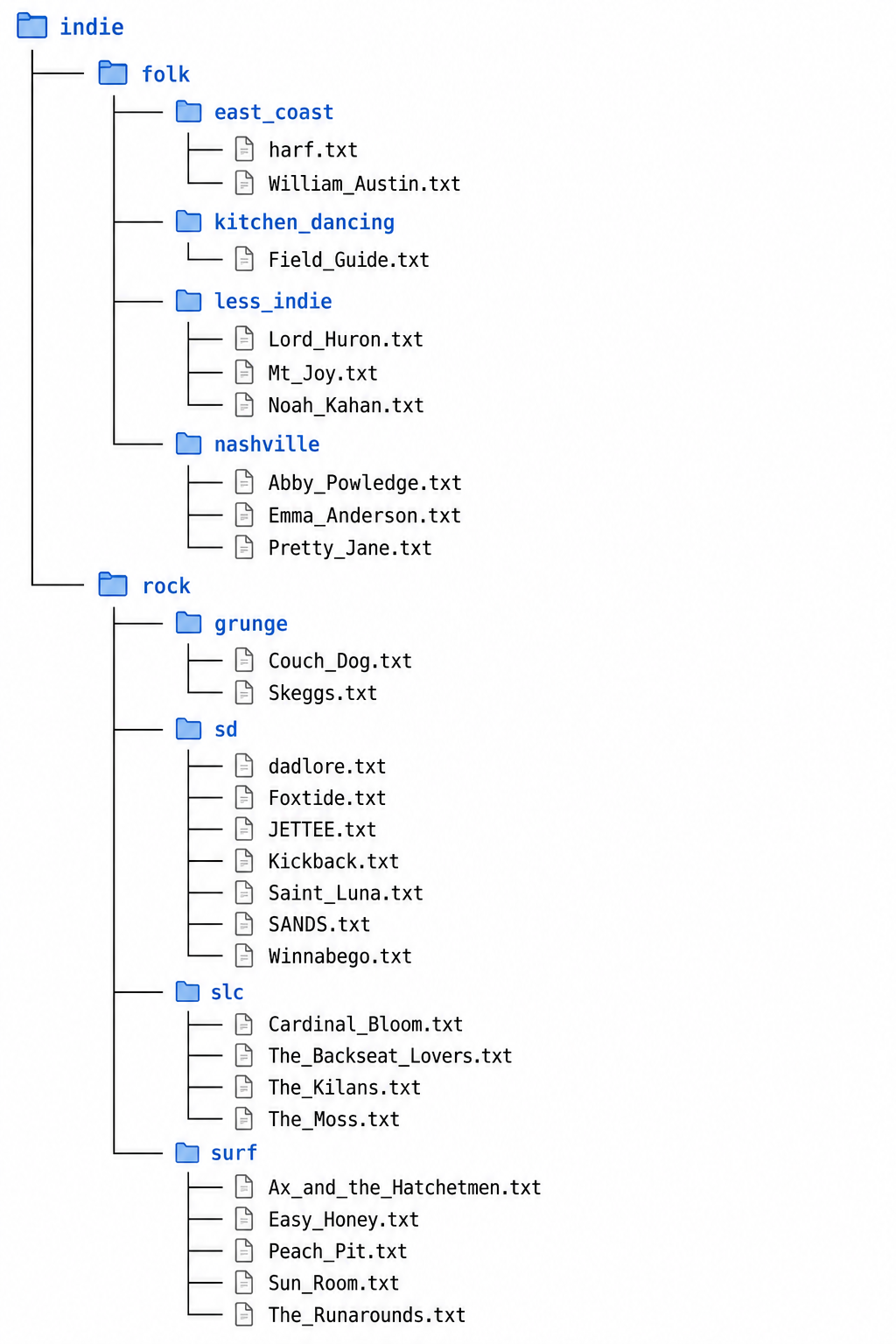
Consider “surf” as our starting directory and start there (current pwd). Complete each task in as few keystrokes as possible. Write your answers on your whiteboard.
- Travis listened to Noah Kahan before he was big (totally). Move Noah Kahan to the east_coast directory, and rename him to Noah_Kahan_2024.txt.
- Travis forgot to add Hozier! Add Hozier.txt to less_indie.
- Travis only likes like one or two song from Skeggs. Remove Skeggs.txt
As you continue to use vim, you may want to consider tools to enhance your experience. Below are several options:
Vundle – a plugin manager for vim https://github.com/vundlevim/vundle.vim
vimawesome – a site with plugins you can add with the help of vundle https://vimawesome.com/
These would take longer to customize so feel free to take a few minutes to look through these but do continue on without much delay.
Searching and Filtering Program Output
In this lab, we’ll walk you through some helpful UNIX commands that are commonly used to save and filter program output. There are multiple ways to achieve the same result, and we’ll demonstrate advantages and disadvantages of each.
In the starter code, you are given a problem.c source code file. This program creates a large 2D array, fills it with numbers, and prints them out. Fortunately, whoever wrote this was thoughtful enough to write code to check for an out-of-bounds error. Unfortunately, whoever wrote this was not thoughtful enough to debug the program. Fortunately, you don’t need to debug this program; we’re going to use this program as an example of how the following UNIX commands can be used to parse a lot of program output easily.
Compile and run problem to see exactly what “a lot of program output” means.
$ make problem
$ ./problem
Every so often there’s an error message, but it’s separated by all the expected program output. For programs with more errors and more output, you could imagine how we wouldn’t want to keep scrolling up the terminal to read. There are multiple ways in which we can filter out everything but the error messages.
Say Less
In previous PAs, we’ve already used the indirection (<) and redirection (>) operators. These are used to feed input into a program, or redirect the output of a program into a file. Let’s first save the output of the program to a text file:
$ ./problem > problem.txt
Redirection overwrites any content of the destination file with the output. There also exists the append (>>) operator, which works similarly to redirection, but appends the output to the end of the destination file instead of overwriting.
$ ./problem >> problem.txt
You can use cat to view the contents of the file, but this is no better than letting the program output directly to the terminal. Instead, we can say less to start a program to display a portion of the file and navigate freely through it. It’s like cat, but shows less at a time.
$ less problem.txt
The less command succeeds the more command, which does the same thing but does not support backwards navigation. In this sense, less is like more, but also (as man less duly notes) less is the opposite of more.
The one subcommand you need to know is to type h while in this program to display a list of subcommands. Some especially helpful subcommands include q to quit and f/b to move forward/backward one window. You may also notice that you can use j and k to move forward or backward by one line, just like in Vim. The subcommand we want to use to filter out all lines that do not have an error is to type “&” followed by the word “error”, then press Enter. less will insert a slash (“/”) in between to indicate that what follows is a pattern to match. This method of filtering is convenient if you don’t want to clutter the terminal interface, but requires that the output exists in a file already.
Once you have filtered the lines in problem.txt such that only the “error” lines remain, as a team, interpret the error and explain it to a tutor or TA.
Search with grep
The grep command is most commonly used to search for lines of a file that match some string. grep takes in two arguments: the “pattern” to match, and a file to read from.
$ grep error problem.txt
This command directly outputs to the terminal, which can be acceptable if you expect the output to be short, and helpful if you don’t want to run the search as a subcommand within another program, as with less.
Try practicing filtering file contents with message.txt, using either less or grep. This file contains the output of another command, which created a large array, assigned random capital character values, and printed it out. For some strange reason, the output shows that some characters were written way out of bounds at column index 42, but it’s hard to tell what’s happened when each line is separated by all the other output. Use less or grep to search for all lines that contain the string “42”. Are you surprised by what you find?
Flow Like Water
Piping
Both of these methods require you to create a file which contains the output of a file. This is generally pretty easy to do, but can be undesirable if you have a lot of output that you don’t want to be saved into a really large file (or are indecisive about naming files). The solution to circumvent this is to use pipes.
Within industry, piping is a system of pipes used to convey fluids (liquids and gases) from one location to another. Within UNIX, the pipe operator (|) is used to directly feed output from one program as input into another program. We can pipe directly from the problem program into either less or grep to accomplish the same result as running these commands on the problem.txt file.
$ ./problem | less
$ ./problem | grep error
We can compound indirection, redirection, and pipe operators to create helpful commands. Understanding how these operators work in conjunction with each other can be understood as an analogy to actual pipes, rendered below as cool animations.
By default, print statements in programs output directly to the terminal interface. So this command:
$ ./problem
looks like this:
By using the redirection operator, we install an elbow pipe to redirect the flow of output into a file. The output no longer flows into the terminal.
$ ./problem > problem.txt
By using the pipe operator, we install a coupling between the output and input of two programs. Without any other pipes at the end, the output of the second program flow into the terminal.
$ ./problem | grep error
By using both piping and redirection, we can chain multiple commands and file writing actions. In this command, we run the problem program, filter its output with grep, and output the filtered lines into a file. This file now contains the error messages from problem, and can serve as an error log. Does this output to the terminal as well?
$ ./problem | grep error > errors.txt
Having some tee and drinking it, too
Redirection lets us write to a file. Not having redirection lets us directly see the output in the terminal. Why don’t we have both?
By using the tee command, we can simultaneously write output to a file and and continue flowing data rightward, usually to the terminal. tee is a command, not an operator like redirection and piping, so we must pipe into tee first. tee takes a filename as an argument, which it outputs to.
$ ./problem | tee problem.txt
The tee command shares its name with the tee pipe in plumbing. Ironically, tee is not rendered as a tee pipe in this analogy. Did we really research plumbing terminology for this lab writeup? Yes.
We can continue to construct longer pipe systems to feed output through multiple commands. This command runs problem, filters its output with grep, then outputs to both a file and the terminal.
$ ./problem | grep error | tee errors.txt
In the starter code, we’ve given you a compiled select program and lotr.txt. We use this command to select specific columns from an input file that is in the form of a csv, which stands for comma separated values and is commonly used for things like spreadsheets. select’s first argument is how many columns are in the provided csv and the following numbers are which columns it will print:
$ ./select -c 4 1 2 4 < lotr.txt
Notice that the indirection operator (<) goes after the command, rather than before it. While it would be very convenient for us to imagine data flowing from left to right, UNIX requires that the first word be a command or executable. So we comply and pretend that the input flows from right to left initially, then continues rightward into any redirects or pipes.
By using redirection and piping in conjunction with the select program we’ve developed previously, we can extend the abilities of program to not only print out a CSV file, but also to create new CSV files and files with rows that match some condition. Try using redirection and piping in addition to the example command above to achieve these results:
- Save the output to a file named
select_lotr.txt - Filter the output to rows that correspond to hobbits (i.e. lines that contain the string “Hobbit”) and save this filtered output to a file named
hobbit_weapons.txt. Optionally, also print out the filtered output to the terminal. - Could you do both of the above in all one command?
Output Streams
In the examples above, we use redirection and piping to manipulate the standard output (stdout) of a program. By default, printf() outputs to this stdout stream, which we illustrate above. What these diagrams do not show (and will not show, please don’t make me try drawing this) is that there actually exists another output stream for standard error (stderr).
To use stderr, we use an alternative to printf(), fprintf(), and specify that it should output to the stderr stream. In problem.c, this line is given to you and commented out. Uncomment this line, and comment the line above (the original print statement). Recompile and run the program.
$ make problem
$ ./problem
The output looks the same as before. The default destination for both stdout and stderr streams is the terminal, but this can be redirected. Try redirecting output to problem.txt as we did before. What’s different this time?
$ ./problem > problem.txt
By default, redirection only operates on stdout, leaving stderr to continue to output to the terminal. We modify the redirection to operate only on stderr, leaving stdout in the terminal:
$ ./problem 2> errors.txt
UNIX uses 1> implicitly as the default redirection operator when we just use >. We can read this as “redirect to the stream with file descriptor 1”, where the stream with file descriptor 1 is stdout.
We can also use two redirections in conjunction with each other to redirect different streams to different files in one command.
$ ./problem > problem.txt 2> errors.txt
First, comment out the
fprintfstatement and uncomment theprintfstatement, so that all output redirects to stdout. Write a command that outputs all lines that involve the first column of the 2D array into both the terminal display and a file calledout0.txt. As a group, ask a tutor or TA to check your work.
Hint
The square brackets are special characters in grep, so to search for
[and], you must use the escape character. For example, if you wanted to search for"[5]", you would use grep like so:grep "\[5\]"